
Getting started
Overview
Roofle is a macOS app, in your menu bar and Dock, that listens to your meetings and conversations, transcribes them on your Mac, and helps while they happen. It is free, open source and released under the MIT license.
| Capability | What it does |
|---|---|
| Live transcription | Captures your microphone and the system audio, tagged by source. |
| Live notes | One short, continuously rewritten document: summary, key points, decisions and action items. |
| Suggested questions | Flags a gap or vague point worth asking about, with a Source button that jumps to the exact line. |
| Quick actions | One-click recap, key figures and dates, what to ask next, simpler explanations, and email, Slack and action-item drafts. |
| Organise | Auto-generated titles, topics, and editable notes. |
Speech recognition and storage run locally. Notes and questions use an AI model through an API key you provide.
Getting started
Install
| Requirement | Value |
|---|---|
| Hardware | Apple Silicon Mac |
| Operating system | macOS 13 or newer |
| AI features | An API key for an OpenAI-compatible model (transcription works without one) |
Download
Download the .dmg, open it and drag Roofle to Applications. Older versions are on the releases page.
Homebrew
brew install --cask roofle-ai/roofle/roofleRoofle checks GitHub for new releases and can update itself from within the app.
Getting started
Permissions
On first use macOS asks for two permissions. Both are needed to capture each side of a conversation.
| Permission | Why Roofle needs it |
|---|---|
| Microphone | Captures your own voice. |
| Screen & System Audio Recording | Captures everyone else on the call, from any meeting app on your Mac. |
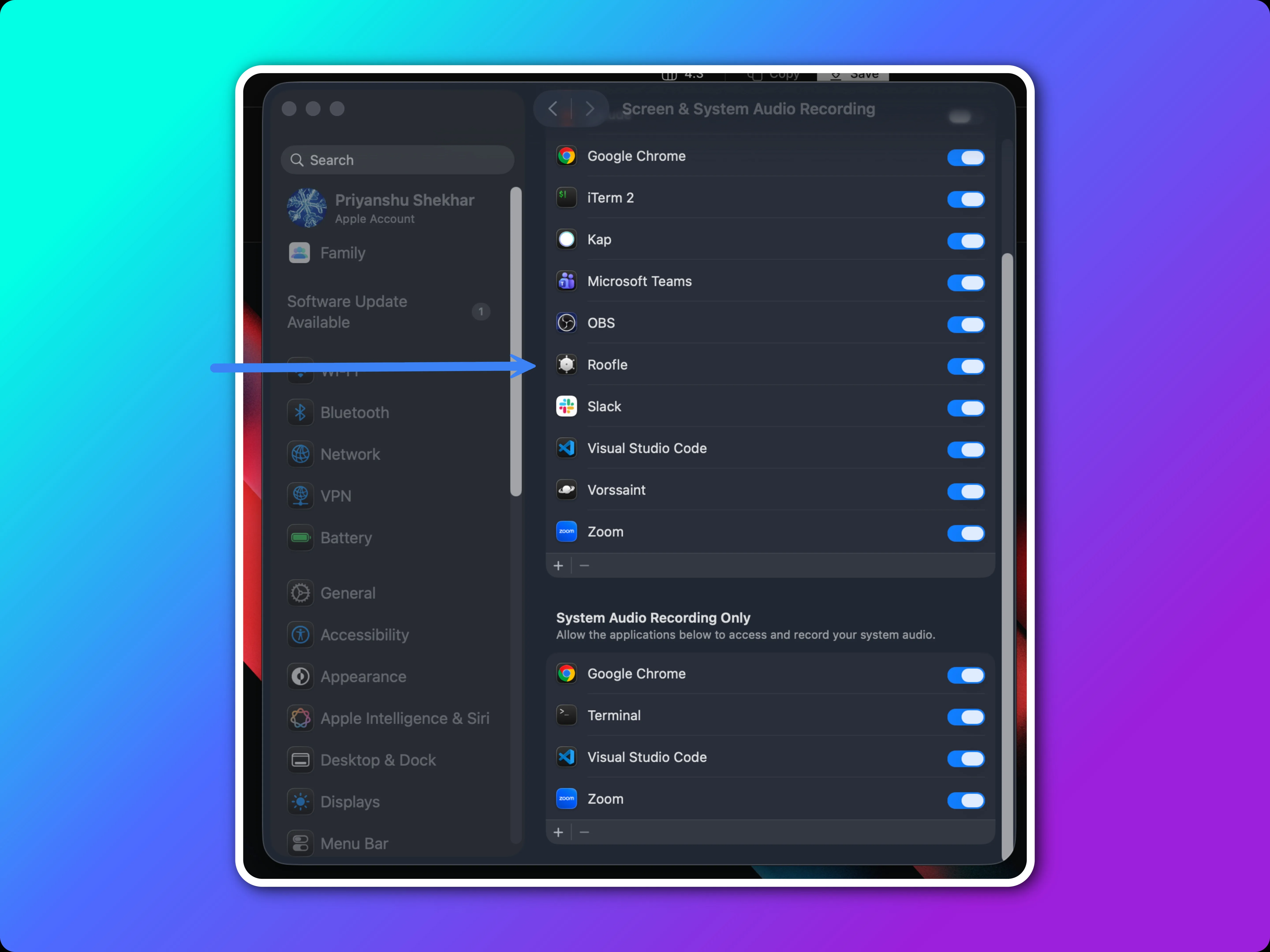
The first run also downloads the on-device speech model, so keep an internet connection for that step.
Using Roofle
Menu bar, Dock and shortcuts
Roofle runs in both the menu bar and the Dock. Use whichever is closer. Nothing is recorded until you start a conversation.
| Action | How |
|---|---|
| Open the window | Click the Dock icon, or left-click the tray icon |
| Open the menu | Right-click the tray icon |
| New conversation | ⌘ ⇧ S |
| Stop conversation | ⌘ ⇧ T |
| Quit | Right-click the tray icon, then Quit |
Using Roofle
Start Roofle for your meeting
Start from the + New Conversation button or the tray menu, pick the type and goal, then let Roofle run. Stop with ⌘ ⇧ T.
Want the full walkthrough? Read How to start Roofle for your meeting.
Using Roofle
After the call
Finished sessions stay in your history. You can also use the quick actions on a finished conversation, such as drafting a follow-up email or listing action items.
| Feature | What it does |
|---|---|
| Title | Roofle names each conversation from its transcript, so history is easy to scan. |
| Topics | Add a conversation under a topic to keep related meetings together. |
| Edit notes | Correct or add to the notes yourself. |
| Delete notes | Remove notes you do not want to keep. |
| Search and export | Search your history, and export a transcript or notes as a .txt file. |
Quick actions
| Action | What it does |
|---|---|
| Recap | A summary of the last 30 seconds. |
| Key figures and dates | Pulls out the numbers and dates mentioned so far. |
| What should I ask next | Suggests the next question worth asking. |
| Say it simpler | Explains the latest point in plainer words. |
| What do they care about | Summarises what the other person seems to prioritise. |
| Confirm understanding | Gives you a line to check you have understood correctly. |
| Email draft | One click drafts a follow-up email from the conversation. |
| Slack draft | One click drafts a Slack message. |
| Action items | One click lists the action items. |
| Regenerate notes | Rewrites the notes from the transcript. |
Export
Export a transcript or the notes as a .txt file. Roofle saves it to your Downloads folder and reveals it in Finder.
Configuration
Connect an AI model
Roofle works with any OpenAI-compatible gateway and model, including local ones. Set the base URL, model and API key in Settings, then run the connection test.
See Connect an AI model for common gateway URLs, local setup and the recommended model.
Configuration
Live session
These settings tune how often Roofle generates questions and notes during a call.
| Setting | Default | Effect |
|---|---|---|
| Question trigger | 500 characters | New questions are generated after this much new transcript. Accepts 50 to 5000. Lower values surface questions sooner. |
| Questions on screen | 2 | The most follow-up questions shown at once, up to 5. A new one waits until one is answered, asked or goes stale. |
| Notes update interval | 5 minutes | Notes are rewritten from each window of the transcript plus the previous notes. Accepts up to 60. |
You can switch suggested questions off and on while a conversation is running, and use Regenerate notes to rewrite the notes at any time.
Configuration
Profile
Pick your role and the meetings you usually join. Roofle uses them to decide what to listen for, such as budget and timeline in sales or failure modes in engineering.
The persona summary (up to 400 characters) is sent to the AI as context. Edit it freely. Clear it to return to the generated text. Changing your role or meetings rewrites it until you edit it yourself.
Configuration
Usage and appearance
Usage shows LLM tokens per session, by month, as reported by your provider. Cost is not tracked. Appearance sets the theme and applies immediately.
Use the Opacity option to make the Roofle window see-through, so you can keep it on top of your meeting window without hiding what is behind it.
Reference
Data and privacy
| Data | Where it goes |
|---|---|
| Audio | Transcribed on-device. Never leaves your Mac. |
| Transcripts and notes | Stored locally in SQLite at ~/Library/Application Support/com.roofle.app/roofle.db. |
| Transcript text | Sent to the AI provider you configure, to generate notes, questions and recaps. Roofle has no server in between. |
| Speech model and updates | Downloaded on first run, and GitHub is checked for new releases. |
| Analytics | None. There is no telemetry in the app. |
For the full picture, see the privacy page.
Reference
Troubleshooting
| Symptom | What to check |
|---|---|
| I cannot find the Roofle window | Click the Dock icon, or left-click the tray icon in the menu bar. |
| Only my voice is transcribed | Screen & System Audio Recording is probably not granted. Enable it in System Settings, Privacy & Security, then restart Roofle. |
| Transcript works but no notes or questions | Open Settings and run the connection test. Check the base URL, model name and API key. |
| Questions appear too rarely or too often | Adjust Question trigger and Questions on screen under Live Session. |
| The window closed and Roofle is still running | Closing only hides it. Use Quit from the tray menu to exit. |
Reference
Uninstall
With Homebrew, this removes the app and its local data:
brew uninstall --cask --zap roofleWithout Homebrew, drag Roofle to the Trash. To remove data too, delete ~/Library/Application Support/com.roofle.app.
Reference
Support
Roofle is open source under the MIT license. Browse the code, report a bug or request a feature on GitHub. For security issues, use GitHub's private vulnerability reporting rather than a public issue. Other questions: support@roofle.app.