
Step 0
Before you begin
Check these once. After that, starting a meeting takes a click.
| Check | Why |
|---|---|
| Roofle is running | It shows in both the Dock and the menu bar. Either one opens the window. |
| Microphone and Screen & System Audio Recording are granted | Without the second one, only your own voice is transcribed. |
| An AI model is connected in Settings | Transcription works without one, but notes and questions need it. Add your key and run the connection test. |
Not set up yet? See Install, Permissions and Connect an AI model.
Step 1
Start a new conversation
Start it just before the meeting begins, or as soon as you join. There are two ways:
| From | How |
|---|---|
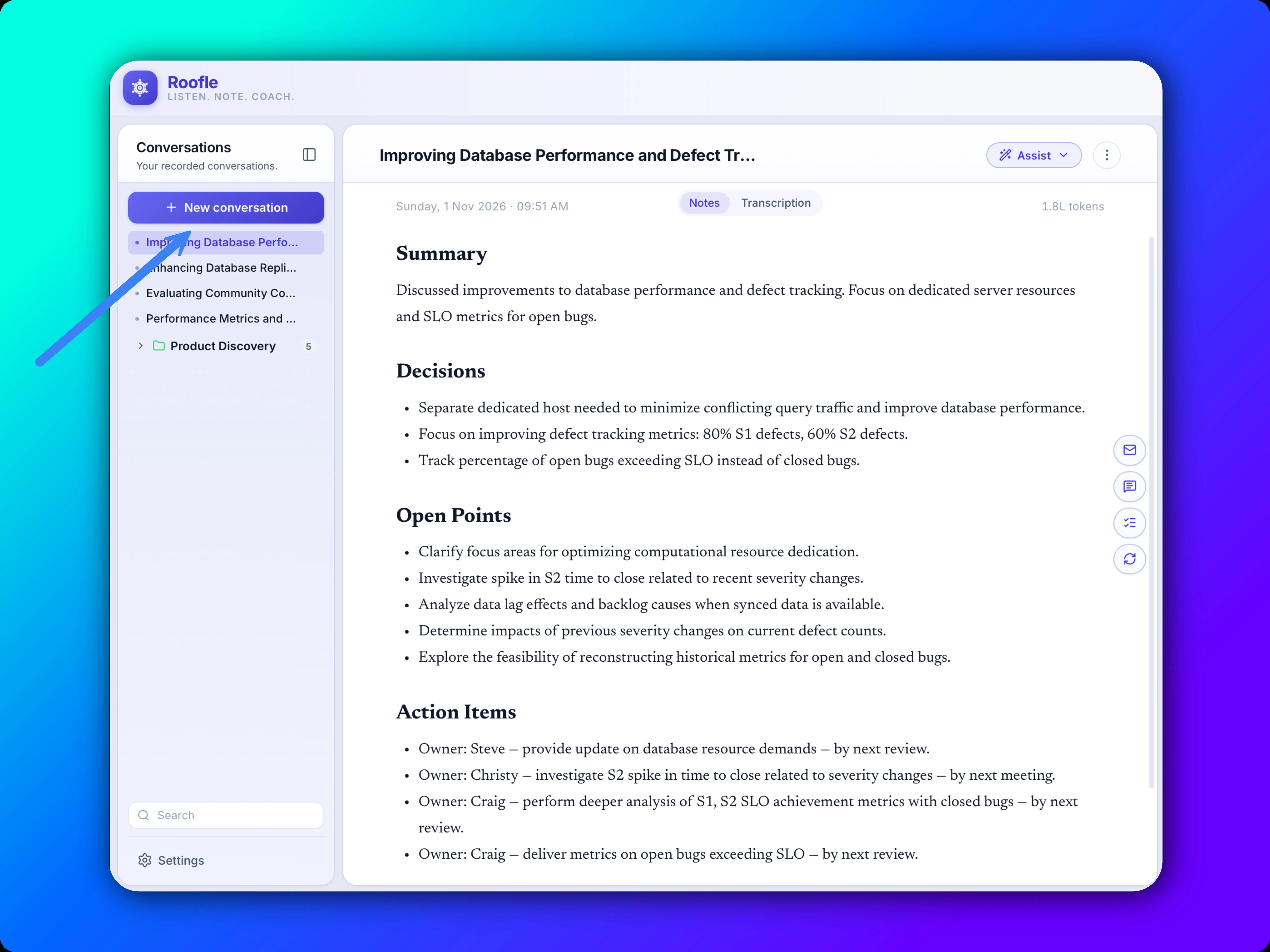
| The app window | Click the + New Conversation button. Open the window first from the Dock icon or the tray icon if it is hidden. |
| The tray icon | Right-click the tray icon in the menu bar, then choose New conversation. |
| Keyboard | ⌘ ⇧ S |
Nothing is recorded until you do this. If you join a call late, start Roofle anyway. It picks up from that moment.
Step 2
Choose the type and your goal
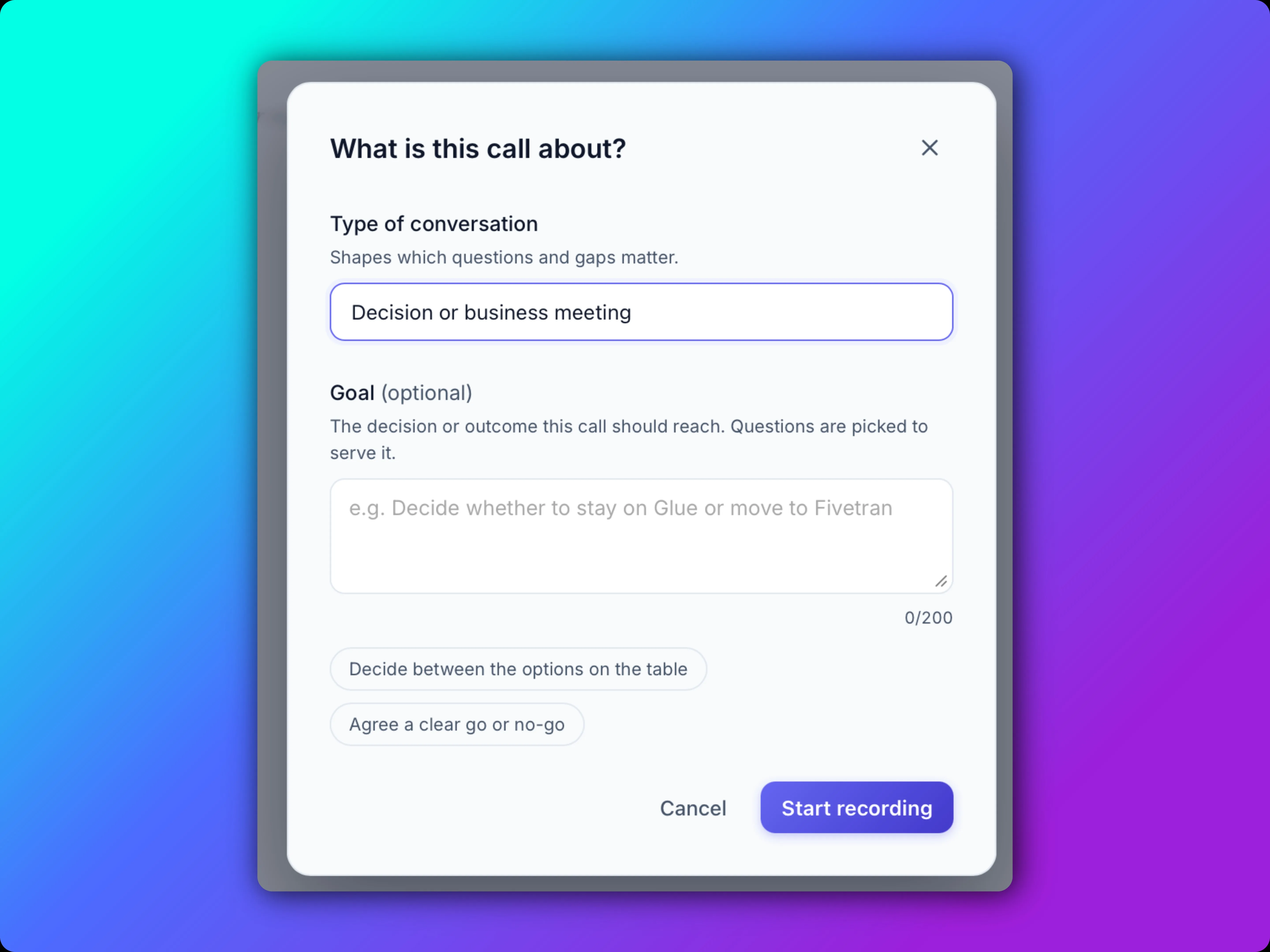
Roofle opens a dialog that asks two things. This step is what lets Roofle improve its output, because it decides what to listen for.
Type of conversation
Pick the one closest to your meeting.
| Type | Use it for |
|---|---|
| Interview | Taking or giving an interview |
| Sales | Selling, or buying |
| Discovery, decision, planning | Customer discovery, go or no-go calls, roadmap sessions |
| Review, status, negotiation | Design reviews, stand-ups, pricing and terms |
| One-on-one, training, other | Feedback sessions, learning sessions, anything else |
Goal
Suggested goals appear as chips. Pick one, or write your own in a sentence. Say what you want out of the meeting, not what the meeting is.
| Weak goal | Better goal |
|---|---|
| Sales call | Find out their budget, timeline and who signs off |
| Interview | Check how the candidate handled a failed project |
| Planning | Agree an owner and a date for each open item |
Step 3
Let it run during the meeting
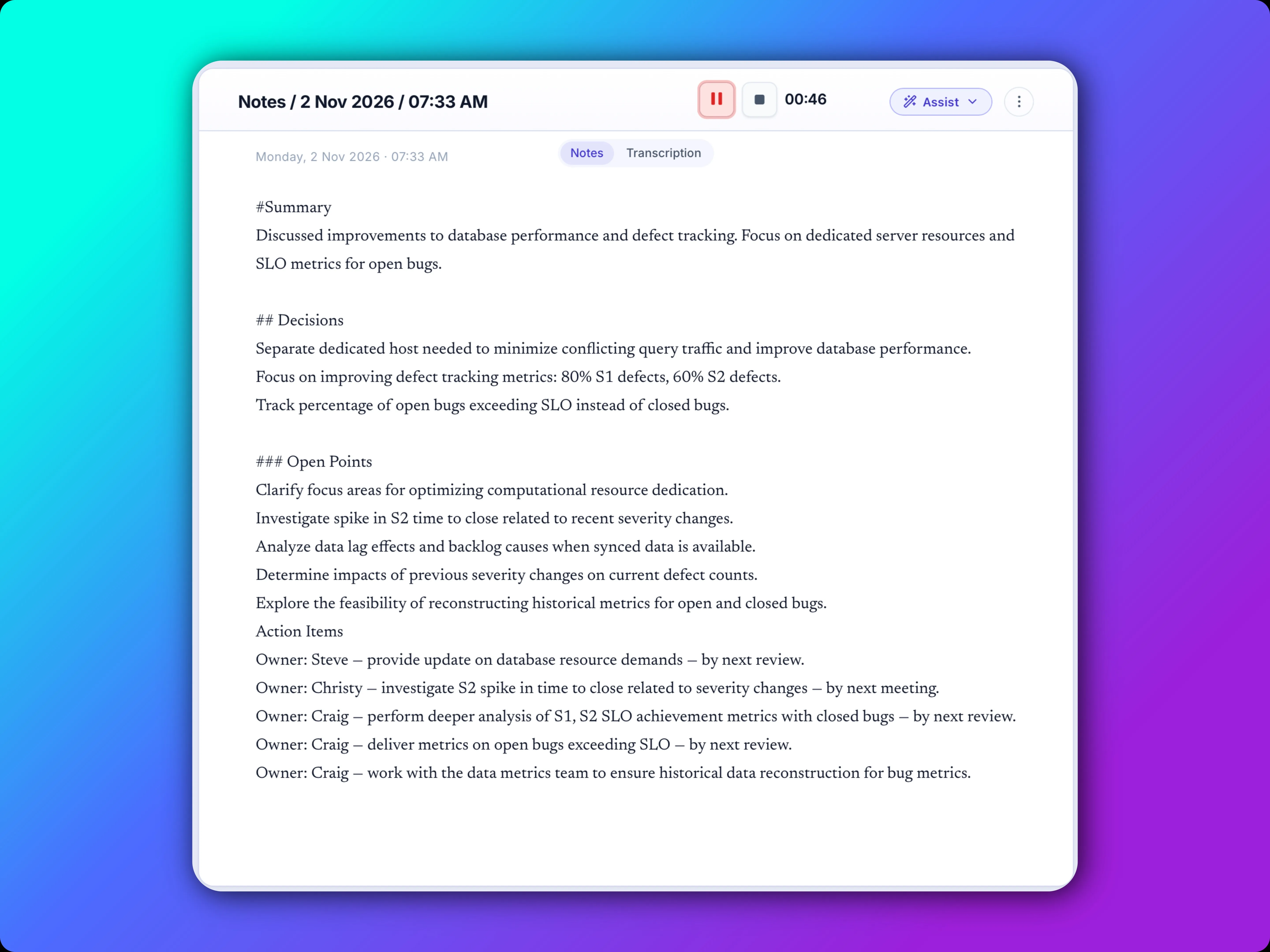
Once you confirm, Roofle works in the background. You can keep your meeting app in front and glance at Roofle when you need it.
What you will see
| Part | What it does |
|---|---|
| Transcript | Both sides of the call, tagged by source: your microphone and the system audio. |
| Live notes | One short document, rewritten continuously: summary, key points, decisions and action items. |
| Suggested questions | A gap or vague point worth asking about. Open Source to jump to the exact transcript line. |
Quick actions
Lost the thread, or need to follow up? Use these without interrupting anyone.
| Action | What it does |
|---|---|
| Recap | A summary of the last 30 seconds. |
| Key figures and dates | Pulls out the numbers and dates mentioned so far. |
| What should I ask next | Suggests the next question worth asking. |
| Say it simpler | Explains the latest point in plainer words. |
| What do they care about | Summarises what the other person seems to prioritise. |
| Confirm understanding | Gives you a line to check you have understood correctly. |
| Email draft | One click drafts a follow-up email from the conversation. |
| Slack draft | One click drafts a Slack message. |
| Action items | One click lists the action items. |
| Regenerate notes | Rewrites the notes from the transcript. |
Keep Roofle on top of your meeting window
Use the Opacity option to make Roofle see-through. You can then place it over your meeting window and still see what is behind it.
Working with suggested questions
You can turn suggested questions off and on at any time while the conversation is running, for example when you want a quieter screen. Only a few questions show at once. A new one appears when you answer or ask one, or when an older one goes stale. If they come too often or too rarely, change Question trigger and Questions on screen under Live session.
Step 4
Stop the conversation
Press ⌘ ⇧ T, or choose Stop conversation from the tray menu. A short call is summarised when it ends.
The session is saved to your history. You can still use the quick actions above, such as the email draft, Slack draft and action items.
| Afterwards | What it does |
|---|---|
| Title | Roofle names each conversation from its transcript, so history is easy to scan. |
| Topics | Add a conversation under a topic to keep related meetings together. |
| Edit notes | Correct or add to the notes yourself. |
| Delete notes | Remove notes you do not want to keep. |
| Search and export | Search your history, and export a transcript or notes as a .txt file. |
See also After the call.
Tips
Getting the best results
- Write a specific goal. It is the biggest single improvement you can make.
- Start Roofle before the first question is asked, not halfway through.
- Pick the type again for each meeting. A stand-up and a negotiation need different questions.
- Draft your follow-up email or Slack message with one click before you leave the call, while it is fresh.
- Keep your role and meetings up to date in Profile.
- Tell participants you are transcribing. Consent rules vary by country and company.
Help
If something looks wrong
| Symptom | What to check |
|---|---|
| Only my voice is transcribed | Enable Screen & System Audio Recording in System Settings, Privacy & Security, then restart Roofle. |
| Transcript works but no notes or questions | Run the connection test in Settings. Check the base URL, model name and API key. |
| I cannot find the New Conversation button | Click the Dock icon or the tray icon to open the window, or use the tray menu or the shortcut. |
More in Troubleshooting.